
Why the Windows 10 ESU Extension Matters
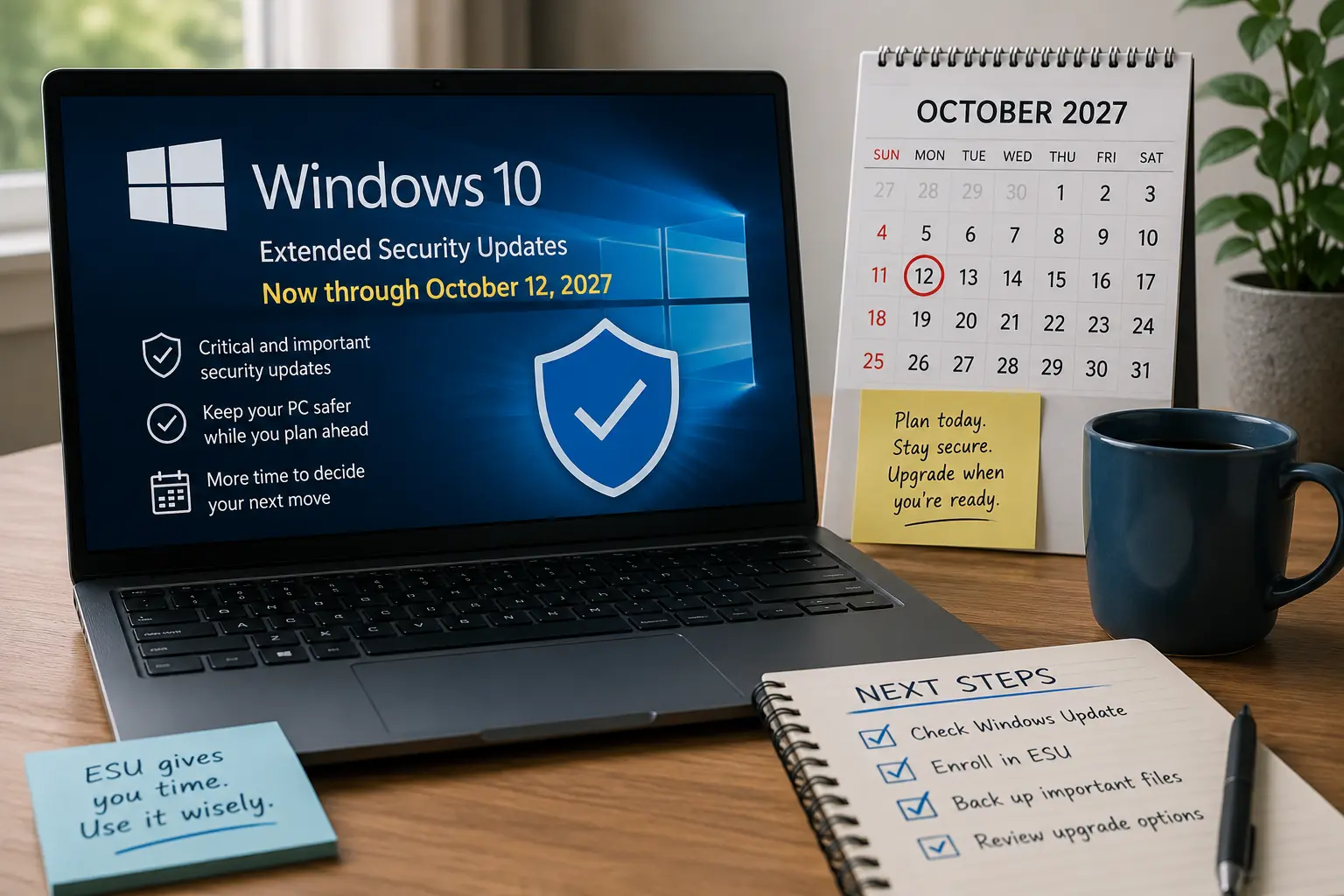
Microsoft has extended the consumer Windows 10 Extended Security Updates program through October 12, 2027. That changes the timeline for people with a working Windows 10 PC, especially if the machine cannot officially upgrade to Windows 11 or if replacing it is not realistic right now.
The practical meaning is simple: Windows 10 is still past its normal support life, but eligible personal devices can keep receiving critical and important security updates through the ESU program. That is not the same as getting new features, full technical support, or a fresh operating system.
The better question is no longer, “Is Windows 10 dead?” The better question is, “Should I use the extra time, and what should I do with it?”
Why the Windows 10 ESU Extension Matters
Microsoft ended regular Windows 10 support on October 14, 2025. After that date, Windows 10 PCs still turn on and run, but they no longer receive standard feature updates, regular technical assistance, or normal security support unless they are covered through an eligible support path.
The ESU extension gives many home users more breathing room. According to Microsoft’s consumer ESU page, eligible Windows 10 PCs can now be enrolled until the program ends on October 12, 2027. If a device is already enrolled, coverage continues through that date without another enrollment step.
Windows 10 ESU Guide
- Why the Windows 10 ESU extension matters
- What Windows 10 ESU actually covers
- How to decide whether to stay on Windows 10
- Step-by-step checklist for Windows 10 users
- When upgrading still makes more sense
- FAQ
- References
This matters most for three groups: people with older but functional PCs, people whose hardware does not meet Windows 11 requirements, and households that need more time before buying a new computer. It is also relevant for gamers who still have stable Windows 10 setups and do not want to rebuild their software, drivers, launchers, and peripherals in a hurry.
What Windows 10 ESU Actually Covers
Windows 10 ESU is a security bridge, not a full support reset. It provides critical and important security updates through Windows Update for enrolled devices. It does not turn Windows 10 back into a fully supported operating system.
Microsoft’s ESU documentation says extended security updates do not include new features, customer-requested nonsecurity updates, design changes, or general support for Windows versions past end of support. That distinction matters. A patched Windows 10 PC is safer than an unpatched one, but it is not getting the same product attention as Windows 11.
For consumer devices, Microsoft lists three enrollment paths: syncing PC settings at no additional cost, redeeming 1,000 Microsoft Rewards points, or making a one-time purchase of $30 USD plus applicable tax. Microsoft also says an existing ESU license can be used on up to 10 eligible devices.
What “eligible” means
The device must be running Windows 10, version 22H2. If the PC is far behind on updates, the first job is not ESU enrollment. The first job is getting Windows 10 itself fully updated.
A useful way to think about it:
| Situation | Best interpretation | What to do next |
|---|---|---|
| Windows 10 22H2, already enrolled in ESU | You should continue receiving ESU coverage through October 12, 2027 | Keep checking Windows Update monthly |
| Windows 10 22H2, not enrolled | You may still be able to enroll | Go to Windows Update and look for the ESU enrollment option |
| Older Windows 10 version | You may not meet the ESU requirement yet | Update to version 22H2 first |
| PC meets Windows 11 requirements | ESU is optional breathing room, not the only path | Compare upgrading now vs. waiting |
| PC cannot run Windows 11 officially | ESU may be the safer short-term path | Plan replacement, reuse, or migration before October 2027 |
How to Decide Whether to Stay on Windows 10
The ESU extension is useful, but it should not become an excuse to ignore the PC forever. Use the extra time as a planning window.
Stay on Windows 10 for now if:
- Your PC runs well, handles your daily tasks, and is eligible for ESU.
- You need time to budget for a replacement.
- A specific app, device, game, or workflow still works better on Windows 10.
- You are comfortable signing in with a Microsoft account, syncing PC settings, using Rewards points, or paying for ESU.
Move sooner if:
- Your PC is already slow, unstable, or failing.
- You rely on newer hardware, security features, or software that favors Windows 11.
- You manage sensitive work, school, or business files on that device.
- You do not want to connect the PC to a Microsoft account or pay for ESU.
The tradeoff is time versus modernization. Staying on Windows 10 with ESU can be reasonable for a stable home PC, but it is still a temporary choice. Upgrading or replacing the device may make more sense if the computer is already holding you back.
Step-by-Step Checklist for Windows 10 Users
Use this checklist before deciding what to do. It keeps the decision practical instead of emotional.
1. Confirm your Windows version
Open Settings > System > About and look for your Windows specifications. You want Windows 10, version 22H2. If you are not on 22H2, run Windows Update before trying to enroll in ESU.
2. Check Windows Update for ESU enrollment
Go to Settings > Update & Security > Windows Update. If your device meets the prerequisites, Microsoft says you should see an option to enroll in ESU.
3. Pick the enrollment path that fits you
The no-additional-cost route requires syncing PC settings. If you do not want that, the other consumer options are Microsoft Rewards points or the one-time $30 USD purchase.
4. Keep normal security habits
ESU is not a replacement for smart behavior. Keep your browser updated, remove apps you no longer use, avoid unknown downloads, and keep backups of important files. A PC can receive security updates and still be risky if the user installs unsafe software.
5. Set a replacement deadline before 2027
Do not wait until October 2027 to think about the next move. A practical deadline is 6 to 12 months before ESU ends. That gives you time to compare a Windows 11 upgrade, a new PC, a refurbished PC, or another operating system if that fits your needs.
When Upgrading Still Makes More Sense
The ESU extension is good news, but it is not a universal recommendation to stay on Windows 10. A patched older system can still be limited by outdated hardware, weak battery life, unsupported drivers, aging storage, and software that slowly moves on.
A realistic example: a family has a 2018 laptop used for homework, streaming, email, and light games. It runs Windows 10 22H2, the battery still lasts a few hours, and there is no budget for a new laptop this year. Enrolling in ESU and planning a 2027 replacement is reasonable.
Now compare that with a freelancer using the same laptop for client files, video meetings, payments, and daily work. If the laptop is slow, crashes during calls, and cannot upgrade to Windows 11, ESU buys time but does not solve the reliability problem. In that case, replacing the machine earlier may be the smarter business decision.
The rule is simple: use ESU to avoid a rushed upgrade, not to postpone an obvious one.
FAQ
Does Windows 10 still work after end of support?
Yes. Windows 10 PCs still function after regular support ends. The issue is not whether the PC turns on. The issue is whether it keeps receiving security updates and whether the device remains dependable for your needs.
Does ESU give Windows 10 new features?
No. ESU is mainly for critical and important security updates. It does not provide new Windows 10 features or bring back full general support.
Is Windows 10 ESU free?
It can be enrolled at no additional cost if you use the PC settings sync option. Microsoft also lists two other consumer paths: redeeming 1,000 Microsoft Rewards points or paying $30 USD plus applicable tax.
Do I need ESU if I plan to upgrade to Windows 11 soon?
If you are upgrading soon and your device remains secure during the transition, ESU may not be necessary. If the upgrade is weeks or months away, enrolling can reduce risk while you prepare.
Should gamers stay on Windows 10 now that ESU goes to 2027?
Some gamers may stay for compatibility, familiarity, or hardware reasons. The safer approach is to enroll in ESU, keep drivers and launchers updated, and test Windows 11 compatibility before making the move. ESU gives time, not a permanent gaming platform strategy.
By: Marcus Irizarry
Why trust this: Practical technology guidance based on Microsoft’s published Windows 10 ESU information, Windows lifecycle details, and current reporting as of June 27, 2026.
Last updated: 2026-06-27
Disclosure: Independent editorial article. No affiliate links or sponsorships are included.
References
- Microsoft Windows: Windows 10 Extended Security Updates
https://www.microsoft.com/en-us/windows/extended-security-updates - Microsoft Learn: Extended Security Updates program for Windows 10
https://learn.microsoft.com/en-us/windows/whats-new/extended-security-updates - BleepingComputer: Microsoft quietly extends free Windows 10 ESU support to October 2027
https://www.bleepingcomputer.com/news/microsoft/microsoft-quietly-extends-free-windows-10-esu-support-to-october-2027/ - Windows Central: Microsoft quietly extends Windows 10’s extra security updates program for free
https://www.windowscentral.com/microsoft/windows-10/microsoft-quietly-extends-windows-10s-extra-security-updates-program-for-free-users-can-now-stay-on-windows-10-until-october-2027-securely
<!-- Start Of Markdown Text -->
<!-- Start (Language Output) --> <!-- End (Language Output) -->
<!-- Start (SEO Title) --> Windows 10 ESU Extended to 2027: What Users Should Do <!-- End (SEO Title) -->
<!-- Start (Meta Description 150–160 chars) --> Windows 10 ESU now runs through October 2027. Learn what it covers, who qualifies, what it costs, and when upgrading still makes sense. <!-- End (Meta Description 150–160 chars) -->
<!-- Start (Custom Permalink slug and image name) --> windows-10-esu-extended-2027 <!-- End (Custom Permalink slug and image name) -->
<!-- Start (Labels & Tags) --> Windows 10, Windows 11, Microsoft, PC Security, Tech Tips <!-- End (Labels & Tags) -->
<!-- Start (Search Description) --> Windows 10 ESU has been extended to October 2027. Here is what it covers, what it does not cover, and how to decide your next step. <!-- End (Search Description) -->
<!-- Start (Author & Trust Signals) --> <!-- End (Author & Trust Signals) -->
<!-- Start (Featured Image Prompt (for image generation)) --> A clean modern editorial illustration of an older Windows 10 laptop on a desk beside a small calendar marked October 2027, a shield icon, and a simple upgrade checklist. Informational tech-blog mood, neutral USA home-office setting, soft daylight, subtle paper texture, no logos, no brand marks, no readable UI text, no watermark. <!-- End (Featured Image Prompt (for image generation)) -->
<!-- Start (Featured Image Alt Text) --> Windows 10 laptop with security shield and October 2027 upgrade checklist. <!-- End (Featured Image Alt Text) -->
<!-- Start (Table of Contents) --> <!-- End (Table of Contents) -->
<!-- Start (Introduction) -->
Why the Windows 10 ESU Extension Matters
Microsoft has extended the consumer Windows 10 Extended Security Updates program through October 12, 2027. That changes the timeline for people with a working Windows 10 PC, especially if the machine cannot officially upgrade to Windows 11 or if replacing it is not realistic right now.
The practical meaning is simple: Windows 10 is still past its normal support life, but eligible personal devices can keep receiving critical and important security updates through the ESU program. That is not the same as getting new features, full technical support, or a fresh operating system.
The better question is no longer, “Is Windows 10 dead?” The better question is, “Should I use the extra time, and what should I do with it?” <!-- End (Introduction) -->
<!-- Start (Article Body) -->
Why the Windows 10 ESU Extension Matters
Microsoft ended regular Windows 10 support on October 14, 2025. After that date, Windows 10 PCs still turn on and run, but they no longer receive standard feature updates, regular technical assistance, or normal security support unless they are covered through an eligible support path.
The ESU extension gives many home users more breathing room. According to Microsoft’s consumer ESU page, eligible Windows 10 PCs can now be enrolled until the program ends on October 12, 2027. If a device is already enrolled, coverage continues through that date without another enrollment step.
Windows 10 ESU Guide
- Why the Windows 10 ESU extension matters
- What Windows 10 ESU actually covers
- How to decide whether to stay on Windows 10
- Step-by-step checklist for Windows 10 users
- When upgrading still makes more sense
- FAQ
- References
This matters most for three groups: people with older but functional PCs, people whose hardware does not meet Windows 11 requirements, and households that need more time before buying a new computer. It is also relevant for gamers who still have stable Windows 10 setups and do not want to rebuild their software, drivers, launchers, and peripherals in a hurry.
What Windows 10 ESU Actually Covers
Windows 10 ESU is a security bridge, not a full support reset. It provides critical and important security updates through Windows Update for enrolled devices. It does not turn Windows 10 back into a fully supported operating system.
Microsoft’s ESU documentation says extended security updates do not include new features, customer-requested nonsecurity updates, design changes, or general support for Windows versions past end of support. That distinction matters. A patched Windows 10 PC is safer than an unpatched one, but it is not getting the same product attention as Windows 11.
For consumer devices, Microsoft lists three enrollment paths: syncing PC settings at no additional cost, redeeming 1,000 Microsoft Rewards points, or making a one-time purchase of $30 USD plus applicable tax. Microsoft also says an existing ESU license can be used on up to 10 eligible devices.
What “eligible” means
The device must be running Windows 10, version 22H2. If the PC is far behind on updates, the first job is not ESU enrollment. The first job is getting Windows 10 itself fully updated.
A useful way to think about it:
| Situation | Best interpretation | What to do next |
|---|---|---|
| Windows 10 22H2, already enrolled in ESU | You should continue receiving ESU coverage through October 12, 2027 | Keep checking Windows Update monthly |
| Windows 10 22H2, not enrolled | You may still be able to enroll | Go to Windows Update and look for the ESU enrollment option |
| Older Windows 10 version | You may not meet the ESU requirement yet | Update to version 22H2 first |
| PC meets Windows 11 requirements | ESU is optional breathing room, not the only path | Compare upgrading now vs. waiting |
| PC cannot run Windows 11 officially | ESU may be the safer short-term path | Plan replacement, reuse, or migration before October 2027 |
How to Decide Whether to Stay on Windows 10
The ESU extension is useful, but it should not become an excuse to ignore the PC forever. Use the extra time as a planning window.
Stay on Windows 10 for now if:
- Your PC runs well, handles your daily tasks, and is eligible for ESU.
- You need time to budget for a replacement.
- A specific app, device, game, or workflow still works better on Windows 10.
- You are comfortable signing in with a Microsoft account, syncing PC settings, using Rewards points, or paying for ESU.
Move sooner if:
- Your PC is already slow, unstable, or failing.
- You rely on newer hardware, security features, or software that favors Windows 11.
- You manage sensitive work, school, or business files on that device.
- You do not want to connect the PC to a Microsoft account or pay for ESU.
The tradeoff is time versus modernization. Staying on Windows 10 with ESU can be reasonable for a stable home PC, but it is still a temporary choice. Upgrading or replacing the device may make more sense if the computer is already holding you back.
Step-by-Step Checklist for Windows 10 Users
Use this checklist before deciding what to do. It keeps the decision practical instead of emotional.
1. Confirm your Windows version
Open Settings > System > About and look for your Windows specifications. You want Windows 10, version 22H2. If you are not on 22H2, run Windows Update before trying to enroll in ESU.
2. Check Windows Update for ESU enrollment
Go to Settings > Update & Security > Windows Update. If your device meets the prerequisites, Microsoft says you should see an option to enroll in ESU.
3. Pick the enrollment path that fits you
The no-additional-cost route requires syncing PC settings. If you do not want that, the other consumer options are Microsoft Rewards points or the one-time $30 USD purchase.
4. Keep normal security habits
ESU is not a replacement for smart behavior. Keep your browser updated, remove apps you no longer use, avoid unknown downloads, and keep backups of important files. A PC can receive security updates and still be risky if the user installs unsafe software.
5. Set a replacement deadline before 2027
Do not wait until October 2027 to think about the next move. A practical deadline is 6 to 12 months before ESU ends. That gives you time to compare a Windows 11 upgrade, a new PC, a refurbished PC, or another operating system if that fits your needs.
When Upgrading Still Makes More Sense
The ESU extension is good news, but it is not a universal recommendation to stay on Windows 10. A patched older system can still be limited by outdated hardware, weak battery life, unsupported drivers, aging storage, and software that slowly moves on.
A realistic example: a family has a 2018 laptop used for homework, streaming, email, and light games. It runs Windows 10 22H2, the battery still lasts a few hours, and there is no budget for a new laptop this year. Enrolling in ESU and planning a 2027 replacement is reasonable.
Now compare that with a freelancer using the same laptop for client files, video meetings, payments, and daily work. If the laptop is slow, crashes during calls, and cannot upgrade to Windows 11, ESU buys time but does not solve the reliability problem. In that case, replacing the machine earlier may be the smarter business decision.
The rule is simple: use ESU to avoid a rushed upgrade, not to postpone an obvious one.
FAQ
Does Windows 10 still work after end of support?
Yes. Windows 10 PCs still function after regular support ends. The issue is not whether the PC turns on. The issue is whether it keeps receiving security updates and whether the device remains dependable for your needs.
Does ESU give Windows 10 new features?
No. ESU is mainly for critical and important security updates. It does not provide new Windows 10 features or bring back full general support.
Is Windows 10 ESU free?
It can be enrolled at no additional cost if you use the PC settings sync option. Microsoft also lists two other consumer paths: redeeming 1,000 Microsoft Rewards points or paying $30 USD plus applicable tax.
Do I need ESU if I plan to upgrade to Windows 11 soon?
If you are upgrading soon and your device remains secure during the transition, ESU may not be necessary. If the upgrade is weeks or months away, enrolling can reduce risk while you prepare.
Should gamers stay on Windows 10 now that ESU goes to 2027?
Some gamers may stay for compatibility, familiarity, or hardware reasons. The safer approach is to enroll in ESU, keep drivers and launchers updated, and test Windows 11 compatibility before making the move. ESU gives time, not a permanent gaming platform strategy.
By: Marcus Irizarry
Why trust this: Practical technology guidance based on Microsoft’s published Windows 10 ESU information, Windows lifecycle details, and current reporting as of June 27, 2026.
Last updated: 2026-06-27
Disclosure: Independent editorial article. No affiliate links or sponsorships are included.
References
- Microsoft Windows: Windows 10 Extended Security Updates
https://www.microsoft.com/en-us/windows/extended-security-updates - Microsoft Learn: Extended Security Updates program for Windows 10
https://learn.microsoft.com/en-us/windows/whats-new/extended-security-updates - BleepingComputer: Microsoft quietly extends free Windows 10 ESU support to October 2027
https://www.bleepingcomputer.com/news/microsoft/microsoft-quietly-extends-free-windows-10-esu-support-to-october-2027/ - Windows Central: Microsoft quietly extends Windows 10’s extra security updates program for free
https://www.windowscentral.com/microsoft/windows-10/microsoft-quietly-extends-windows-10s-extra-security-updates-program-for-free-users-can-now-stay-on-windows-10-until-october-2027-securely <!-- End (Article Body) -->
<!-- Start (Suggested External Links) -->
- Microsoft Windows 10 ESU enrollment information: https://www.microsoft.com/en-us/windows/extended-security-updates
- Microsoft Learn ESU limitations and prerequisites: https://learn.microsoft.com/en-us/windows/whats-new/extended-security-updates <!-- End (Suggested External Links) -->
<!-- Start (Internal Links 4 Blogger) --> <!-- End (Internal Links 4 Blogger) -->
<!-- End Of Markdown Text -->
<!-- Start Of Markdown Text -->
<!-- Start (Language Output) --> <!-- End (Language Output) -->
<!-- Start (SEO Title) --> Windows 10 ESU Extended to 2027: What Users Should Do <!-- End (SEO Title) -->
<!-- Start (Meta Description 150–160 chars) --> Windows 10 ESU now runs through October 2027. Learn what it covers, who qualifies, what it costs, and when upgrading still makes sense. <!-- End (Meta Description 150–160 chars) -->
<!-- Start (Custom Permalink slug and image name) --> windows-10-esu-extended-2027 <!-- End (Custom Permalink slug and image name) -->
<!-- Start (Labels & Tags) --> Windows 10, Windows 11, Microsoft, PC Security, Tech Tips <!-- End (Labels & Tags) -->
<!-- Start (Search Description) --> Windows 10 ESU has been extended to October 2027. Here is what it covers, what it does not cover, and how to decide your next step. <!-- End (Search Description) -->
<!-- Start (Author & Trust Signals) --> <!-- End (Author & Trust Signals) -->
<!-- Start (Featured Image Prompt (for image generation)) --> A clean modern editorial illustration of an older Windows 10 laptop on a desk beside a small calendar marked October 2027, a shield icon, and a simple upgrade checklist. Informational tech-blog mood, neutral USA home-office setting, soft daylight, subtle paper texture, no logos, no brand marks, no readable UI text, no watermark. <!-- End (Featured Image Prompt (for image generation)) -->
<!-- Start (Featured Image Alt Text) --> Windows 10 laptop with security shield and October 2027 upgrade checklist. <!-- End (Featured Image Alt Text) -->
<!-- Start (Table of Contents) --> <!-- End (Table of Contents) -->
<!-- Start (Introduction) -->
Why the Windows 10 ESU Extension Matters
Microsoft has extended the consumer Windows 10 Extended Security Updates program through October 12, 2027. That changes the timeline for people with a working Windows 10 PC, especially if the machine cannot officially upgrade to Windows 11 or if replacing it is not realistic right now.
The practical meaning is simple: Windows 10 is still past its normal support life, but eligible personal devices can keep receiving critical and important security updates through the ESU program. That is not the same as getting new features, full technical support, or a fresh operating system.
The better question is no longer, “Is Windows 10 dead?” The better question is, “Should I use the extra time, and what should I do with it?” <!-- End (Introduction) -->
<!-- Start (Article Body) -->
Why the Windows 10 ESU Extension Matters
Microsoft ended regular Windows 10 support on October 14, 2025. After that date, Windows 10 PCs still turn on and run, but they no longer receive standard feature updates, regular technical assistance, or normal security support unless they are covered through an eligible support path.
The ESU extension gives many home users more breathing room. According to Microsoft’s consumer ESU page, eligible Windows 10 PCs can now be enrolled until the program ends on October 12, 2027. If a device is already enrolled, coverage continues through that date without another enrollment step.
Windows 10 ESU Guide
- Why the Windows 10 ESU extension matters
- What Windows 10 ESU actually covers
- How to decide whether to stay on Windows 10
- Step-by-step checklist for Windows 10 users
- When upgrading still makes more sense
- FAQ
- References
This matters most for three groups: people with older but functional PCs, people whose hardware does not meet Windows 11 requirements, and households that need more time before buying a new computer. It is also relevant for gamers who still have stable Windows 10 setups and do not want to rebuild their software, drivers, launchers, and peripherals in a hurry.
What Windows 10 ESU Actually Covers
Windows 10 ESU is a security bridge, not a full support reset. It provides critical and important security updates through Windows Update for enrolled devices. It does not turn Windows 10 back into a fully supported operating system.
Microsoft’s ESU documentation says extended security updates do not include new features, customer-requested nonsecurity updates, design changes, or general support for Windows versions past end of support. That distinction matters. A patched Windows 10 PC is safer than an unpatched one, but it is not getting the same product attention as Windows 11.
For consumer devices, Microsoft lists three enrollment paths: syncing PC settings at no additional cost, redeeming 1,000 Microsoft Rewards points, or making a one-time purchase of $30 USD plus applicable tax. Microsoft also says an existing ESU license can be used on up to 10 eligible devices.
What “eligible” means
The device must be running Windows 10, version 22H2. If the PC is far behind on updates, the first job is not ESU enrollment. The first job is getting Windows 10 itself fully updated.
A useful way to think about it:
| Situation | Best interpretation | What to do next |
|---|---|---|
| Windows 10 22H2, already enrolled in ESU | You should continue receiving ESU coverage through October 12, 2027 | Keep checking Windows Update monthly |
| Windows 10 22H2, not enrolled | You may still be able to enroll | Go to Windows Update and look for the ESU enrollment option |
| Older Windows 10 version | You may not meet the ESU requirement yet | Update to version 22H2 first |
| PC meets Windows 11 requirements | ESU is optional breathing room, not the only path | Compare upgrading now vs. waiting |
| PC cannot run Windows 11 officially | ESU may be the safer short-term path | Plan replacement, reuse, or migration before October 2027 |
How to Decide Whether to Stay on Windows 10
The ESU extension is useful, but it should not become an excuse to ignore the PC forever. Use the extra time as a planning window.
Stay on Windows 10 for now if:
- Your PC runs well, handles your daily tasks, and is eligible for ESU.
- You need time to budget for a replacement.
- A specific app, device, game, or workflow still works better on Windows 10.
- You are comfortable signing in with a Microsoft account, syncing PC settings, using Rewards points, or paying for ESU.
Move sooner if:
- Your PC is already slow, unstable, or failing.
- You rely on newer hardware, security features, or software that favors Windows 11.
- You manage sensitive work, school, or business files on that device.
- You do not want to connect the PC to a Microsoft account or pay for ESU.
The tradeoff is time versus modernization. Staying on Windows 10 with ESU can be reasonable for a stable home PC, but it is still a temporary choice. Upgrading or replacing the device may make more sense if the computer is already holding you back.
Step-by-Step Checklist for Windows 10 Users
Use this checklist before deciding what to do. It keeps the decision practical instead of emotional.
1. Confirm your Windows version
Open Settings > System > About and look for your Windows specifications. You want Windows 10, version 22H2. If you are not on 22H2, run Windows Update before trying to enroll in ESU.
2. Check Windows Update for ESU enrollment
Go to Settings > Update & Security > Windows Update. If your device meets the prerequisites, Microsoft says you should see an option to enroll in ESU.
3. Pick the enrollment path that fits you
The no-additional-cost route requires syncing PC settings. If you do not want that, the other consumer options are Microsoft Rewards points or the one-time $30 USD purchase.
4. Keep normal security habits
ESU is not a replacement for smart behavior. Keep your browser updated, remove apps you no longer use, avoid unknown downloads, and keep backups of important files. A PC can receive security updates and still be risky if the user installs unsafe software.
5. Set a replacement deadline before 2027
Do not wait until October 2027 to think about the next move. A practical deadline is 6 to 12 months before ESU ends. That gives you time to compare a Windows 11 upgrade, a new PC, a refurbished PC, or another operating system if that fits your needs.
When Upgrading Still Makes More Sense
The ESU extension is good news, but it is not a universal recommendation to stay on Windows 10. A patched older system can still be limited by outdated hardware, weak battery life, unsupported drivers, aging storage, and software that slowly moves on.
A realistic example: a family has a 2018 laptop used for homework, streaming, email, and light games. It runs Windows 10 22H2, the battery still lasts a few hours, and there is no budget for a new laptop this year. Enrolling in ESU and planning a 2027 replacement is reasonable.
Now compare that with a freelancer using the same laptop for client files, video meetings, payments, and daily work. If the laptop is slow, crashes during calls, and cannot upgrade to Windows 11, ESU buys time but does not solve the reliability problem. In that case, replacing the machine earlier may be the smarter business decision.
The rule is simple: use ESU to avoid a rushed upgrade, not to postpone an obvious one.
FAQ
Does Windows 10 still work after end of support?
Yes. Windows 10 PCs still function after regular support ends. The issue is not whether the PC turns on. The issue is whether it keeps receiving security updates and whether the device remains dependable for your needs.
Does ESU give Windows 10 new features?
No. ESU is mainly for critical and important security updates. It does not provide new Windows 10 features or bring back full general support.
Is Windows 10 ESU free?
It can be enrolled at no additional cost if you use the PC settings sync option. Microsoft also lists two other consumer paths: redeeming 1,000 Microsoft Rewards points or paying $30 USD plus applicable tax.
Do I need ESU if I plan to upgrade to Windows 11 soon?
If you are upgrading soon and your device remains secure during the transition, ESU may not be necessary. If the upgrade is weeks or months away, enrolling can reduce risk while you prepare.
Should gamers stay on Windows 10 now that ESU goes to 2027?
Some gamers may stay for compatibility, familiarity, or hardware reasons. The safer approach is to enroll in ESU, keep drivers and launchers updated, and test Windows 11 compatibility before making the move. ESU gives time, not a permanent gaming platform strategy.
By: Marcus Irizarry
Why trust this: Practical technology guidance based on Microsoft’s published Windows 10 ESU information, Windows lifecycle details, and current reporting as of June 27, 2026.
Last updated: 2026-06-27
Disclosure: Independent editorial article. No affiliate links or sponsorships are included.
References
- Microsoft Windows: Windows 10 Extended Security Updates
https://www.microsoft.com/en-us/windows/extended-security-updates - Microsoft Learn: Extended Security Updates program for Windows 10
https://learn.microsoft.com/en-us/windows/whats-new/extended-security-updates - BleepingComputer: Microsoft quietly extends free Windows 10 ESU support to October 2027
https://www.bleepingcomputer.com/news/microsoft/microsoft-quietly-extends-free-windows-10-esu-support-to-october-2027/ - Windows Central: Microsoft quietly extends Windows 10’s extra security updates program for free
https://www.windowscentral.com/microsoft/windows-10/microsoft-quietly-extends-windows-10s-extra-security-updates-program-for-free-users-can-now-stay-on-windows-10-until-october-2027-securely <!-- End (Article Body) -->
<!-- Start (Suggested External Links) -->
- Microsoft Windows 10 ESU enrollment information: https://www.microsoft.com/en-us/windows/extended-security-updates
- Microsoft Learn ESU limitations and prerequisites: https://learn.microsoft.com/en-us/windows/whats-new/extended-security-updates <!-- End (Suggested External Links) -->
<!-- Start (Internal Links 4 Blogger) --> <!-- End (Internal Links 4 Blogger) -->
<!-- End Of Markdown Text -->
<!-- Start Of Markdown Text -->
<!-- Start (Language Output) --> <!-- End (Language Output) -->
<!-- Start (SEO Title) --> Windows 10 ESU Extended to 2027: What Users Should Do <!-- End (SEO Title) -->
<!-- Start (Meta Description 150–160 chars) --> Windows 10 ESU now runs through October 2027. Learn what it covers, who qualifies, what it costs, and when upgrading still makes sense. <!-- End (Meta Description 150–160 chars) -->
<!-- Start (Custom Permalink slug and image name) --> windows-10-esu-extended-2027 <!-- End (Custom Permalink slug and image name) -->
<!-- Start (Labels & Tags) --> Windows 10, Windows 11, Microsoft, PC Security, Tech Tips <!-- End (Labels & Tags) -->
<!-- Start (Search Description) --> Windows 10 ESU has been extended to October 2027. Here is what it covers, what it does not cover, and how to decide your next step. <!-- End (Search Description) -->
<!-- Start (Author & Trust Signals) --> <!-- End (Author & Trust Signals) -->
<!-- Start (Featured Image Prompt (for image generation)) --> A clean modern editorial illustration of an older Windows 10 laptop on a desk beside a small calendar marked October 2027, a shield icon, and a simple upgrade checklist. Informational tech-blog mood, neutral USA home-office setting, soft daylight, subtle paper texture, no logos, no brand marks, no readable UI text, no watermark. <!-- End (Featured Image Prompt (for image generation)) -->
<!-- Start (Featured Image Alt Text) --> Windows 10 laptop with security shield and October 2027 upgrade checklist. <!-- End (Featured Image Alt Text) -->
<!-- Start (Table of Contents) --> <!-- End (Table of Contents) -->
<!-- Start (Introduction) -->
Why the Windows 10 ESU Extension Matters
Microsoft has extended the consumer Windows 10 Extended Security Updates program through October 12, 2027. That changes the timeline for people with a working Windows 10 PC, especially if the machine cannot officially upgrade to Windows 11 or if replacing it is not realistic right now.
The practical meaning is simple: Windows 10 is still past its normal support life, but eligible personal devices can keep receiving critical and important security updates through the ESU program. That is not the same as getting new features, full technical support, or a fresh operating system.
The better question is no longer, “Is Windows 10 dead?” The better question is, “Should I use the extra time, and what should I do with it?” <!-- End (Introduction) -->
<!-- Start (Article Body) -->
Why the Windows 10 ESU Extension Matters
Microsoft ended regular Windows 10 support on October 14, 2025. After that date, Windows 10 PCs still turn on and run, but they no longer receive standard feature updates, regular technical assistance, or normal security support unless they are covered through an eligible support path.
The ESU extension gives many home users more breathing room. According to Microsoft’s consumer ESU page, eligible Windows 10 PCs can now be enrolled until the program ends on October 12, 2027. If a device is already enrolled, coverage continues through that date without another enrollment step.
Windows 10 ESU Guide
- Why the Windows 10 ESU extension matters
- What Windows 10 ESU actually covers
- How to decide whether to stay on Windows 10
- Step-by-step checklist for Windows 10 users
- When upgrading still makes more sense
- FAQ
- References
This matters most for three groups: people with older but functional PCs, people whose hardware does not meet Windows 11 requirements, and households that need more time before buying a new computer. It is also relevant for gamers who still have stable Windows 10 setups and do not want to rebuild their software, drivers, launchers, and peripherals in a hurry.
What Windows 10 ESU Actually Covers
Windows 10 ESU is a security bridge, not a full support reset. It provides critical and important security updates through Windows Update for enrolled devices. It does not turn Windows 10 back into a fully supported operating system.
Microsoft’s ESU documentation says extended security updates do not include new features, customer-requested nonsecurity updates, design changes, or general support for Windows versions past end of support. That distinction matters. A patched Windows 10 PC is safer than an unpatched one, but it is not getting the same product attention as Windows 11.
For consumer devices, Microsoft lists three enrollment paths: syncing PC settings at no additional cost, redeeming 1,000 Microsoft Rewards points, or making a one-time purchase of $30 USD plus applicable tax. Microsoft also says an existing ESU license can be used on up to 10 eligible devices.
What “eligible” means
The device must be running Windows 10, version 22H2. If the PC is far behind on updates, the first job is not ESU enrollment. The first job is getting Windows 10 itself fully updated.
A useful way to think about it:
| Situation | Best interpretation | What to do next |
|---|---|---|
| Windows 10 22H2, already enrolled in ESU | You should continue receiving ESU coverage through October 12, 2027 | Keep checking Windows Update monthly |
| Windows 10 22H2, not enrolled | You may still be able to enroll | Go to Windows Update and look for the ESU enrollment option |
| Older Windows 10 version | You may not meet the ESU requirement yet | Update to version 22H2 first |
| PC meets Windows 11 requirements | ESU is optional breathing room, not the only path | Compare upgrading now vs. waiting |
| PC cannot run Windows 11 officially | ESU may be the safer short-term path | Plan replacement, reuse, or migration before October 2027 |
How to Decide Whether to Stay on Windows 10
The ESU extension is useful, but it should not become an excuse to ignore the PC forever. Use the extra time as a planning window.
Stay on Windows 10 for now if:
- Your PC runs well, handles your daily tasks, and is eligible for ESU.
- You need time to budget for a replacement.
- A specific app, device, game, or workflow still works better on Windows 10.
- You are comfortable signing in with a Microsoft account, syncing PC settings, using Rewards points, or paying for ESU.
Move sooner if:
- Your PC is already slow, unstable, or failing.
- You rely on newer hardware, security features, or software that favors Windows 11.
- You manage sensitive work, school, or business files on that device.
- You do not want to connect the PC to a Microsoft account or pay for ESU.
The tradeoff is time versus modernization. Staying on Windows 10 with ESU can be reasonable for a stable home PC, but it is still a temporary choice. Upgrading or replacing the device may make more sense if the computer is already holding you back.
Step-by-Step Checklist for Windows 10 Users
Use this checklist before deciding what to do. It keeps the decision practical instead of emotional.
1. Confirm your Windows version
Open Settings > System > About and look for your Windows specifications. You want Windows 10, version 22H2. If you are not on 22H2, run Windows Update before trying to enroll in ESU.
2. Check Windows Update for ESU enrollment
Go to Settings > Update & Security > Windows Update. If your device meets the prerequisites, Microsoft says you should see an option to enroll in ESU.
3. Pick the enrollment path that fits you
The no-additional-cost route requires syncing PC settings. If you do not want that, the other consumer options are Microsoft Rewards points or the one-time $30 USD purchase.
4. Keep normal security habits
ESU is not a replacement for smart behavior. Keep your browser updated, remove apps you no longer use, avoid unknown downloads, and keep backups of important files. A PC can receive security updates and still be risky if the user installs unsafe software.
5. Set a replacement deadline before 2027
Do not wait until October 2027 to think about the next move. A practical deadline is 6 to 12 months before ESU ends. That gives you time to compare a Windows 11 upgrade, a new PC, a refurbished PC, or another operating system if that fits your needs.
When Upgrading Still Makes More Sense
The ESU extension is good news, but it is not a universal recommendation to stay on Windows 10. A patched older system can still be limited by outdated hardware, weak battery life, unsupported drivers, aging storage, and software that slowly moves on.
A realistic example: a family has a 2018 laptop used for homework, streaming, email, and light games. It runs Windows 10 22H2, the battery still lasts a few hours, and there is no budget for a new laptop this year. Enrolling in ESU and planning a 2027 replacement is reasonable.
Now compare that with a freelancer using the same laptop for client files, video meetings, payments, and daily work. If the laptop is slow, crashes during calls, and cannot upgrade to Windows 11, ESU buys time but does not solve the reliability problem. In that case, replacing the machine earlier may be the smarter business decision.
The rule is simple: use ESU to avoid a rushed upgrade, not to postpone an obvious one.
FAQ
Does Windows 10 still work after end of support?
Yes. Windows 10 PCs still function after regular support ends. The issue is not whether the PC turns on. The issue is whether it keeps receiving security updates and whether the device remains dependable for your needs.
Does ESU give Windows 10 new features?
No. ESU is mainly for critical and important security updates. It does not provide new Windows 10 features or bring back full general support.
Is Windows 10 ESU free?
It can be enrolled at no additional cost if you use the PC settings sync option. Microsoft also lists two other consumer paths: redeeming 1,000 Microsoft Rewards points or paying $30 USD plus applicable tax.
Do I need ESU if I plan to upgrade to Windows 11 soon?
If you are upgrading soon and your device remains secure during the transition, ESU may not be necessary. If the upgrade is weeks or months away, enrolling can reduce risk while you prepare.
Should gamers stay on Windows 10 now that ESU goes to 2027?
Some gamers may stay for compatibility, familiarity, or hardware reasons. The safer approach is to enroll in ESU, keep drivers and launchers updated, and test Windows 11 compatibility before making the move. ESU gives time, not a permanent gaming platform strategy.
By: Marcus Irizarry
Why trust this: Practical technology guidance based on Microsoft’s published Windows 10 ESU information, Windows lifecycle details, and current reporting as of June 27, 2026.
Last updated: 2026-06-27
Disclosure: Independent editorial article. No affiliate links or sponsorships are included.
References
- Microsoft Windows: Windows 10 Extended Security Updates
https://www.microsoft.com/en-us/windows/extended-security-updates - Microsoft Learn: Extended Security Updates program for Windows 10
https://learn.microsoft.com/en-us/windows/whats-new/extended-security-updates - BleepingComputer: Microsoft quietly extends free Windows 10 ESU support to October 2027
https://www.bleepingcomputer.com/news/microsoft/microsoft-quietly-extends-free-windows-10-esu-support-to-october-2027/ - Windows Central: Microsoft quietly extends Windows 10’s extra security updates program for free
https://www.windowscentral.com/microsoft/windows-10/microsoft-quietly-extends-windows-10s-extra-security-updates-program-for-free-users-can-now-stay-on-windows-10-until-october-2027-securely <!-- End (Article Body) -->
<!-- Start (Suggested External Links) -->
- Microsoft Windows 10 ESU enrollment information: https://www.microsoft.com/en-us/windows/extended-security-updates
- Microsoft Learn ESU limitations and prerequisites: https://learn.microsoft.com/en-us/windows/whats-new/extended-security-updates <!-- End (Suggested External Links) -->
<!-- Start (Internal Links 4 Blogger) --> <!-- End (Internal Links 4 Blogger) -->
<!-- End Of Markdown Text -->


0 Comments